You are here: Appearance > Editing Completion Chart Colors

Editing Completion Chart Colors

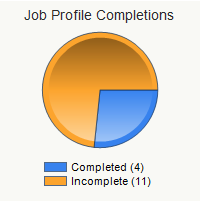
You can edit the colors used in any completion chart, such as the Job Profile Completions pie chart on the Users page or My Team™ dynamic object.

Any changes you make here affect the entire LearnCenter you are currently working in, not parent or sub LearnCenters.

On the ControlPanel:

  1. Click  on the Appearance menu to expand it.
  2. Click Fonts and Colors.

Access to this option is only available if you have been granted the Edit LearnCenter Fonts and Colors sub permission of the Edit LearnCenter Appearance User Permission. See Appearance User Permissions for additional information.

  1. Scroll down to view the Completion Chart Colors section.

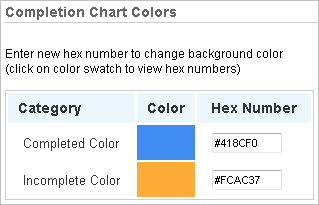
  1. Click the colored square next to Completed Color and select a color from the palette for the course wrapping that surrounds all web-based training (WBT).
    or
    Type the Hex Number for the color if you know it.
  2. Click the colored square next to Incomplete Color and select a color from the palette for the course wrapping that surrounds all web-based training (WBT).
    or
    Type the Hex Number for the color if you know it.
  3. Click Save.

Related Topics IconRelated Topics


Copyright © 2010-2018, Oracle and/or its affiliates. All rights reserved.