You are here: Dynamic Objects > Report List Dynamic Object

Report List Dynamic Object

Use the Report List dynamic object to to share BI Reporting reports with Users who do not have My Team or Control Panel access.What displays to Users is similar to what displays for Admins and Supervisors in the Control Panel and My Team, with the exception of a Users tab. This is because Users can only run reports on themselves.

Note: If you are an Admin or a Supervisor, and you need to run reports on other Users, you must do so using BI Reporting through the Control Panel or My Team.

Important: History is maintained on a per User-Per LearnCenter-Per-Role basis. What this means is if you are a Supervisor, an Admin, and a standard end User, and you can run reports from multiple locations (Control Panel, My Team or this dynamic object), the history and parameter setups for one location are not reflected in the other. If you change parameters or you run a report on the Control Panel, that information is no reflected in the BI Report List dynamic object. However, if you have multiples BI Report List dynamic objects, what you do in one dynamic object is reflected in another dynamic object.
On any LearnCenter page:

  1. Click in the management control icons section. The page you are viewing opens in Edit Mode.
  2. Click to modify an existing area of the page.

    or

    Click Insert New Area Here, select Free-Form (Text and Graphics) from the Area Type drop-down list, and click Create.
  3. Place your cursor anywhere on the page, and click . The Dynamic Object window opens.
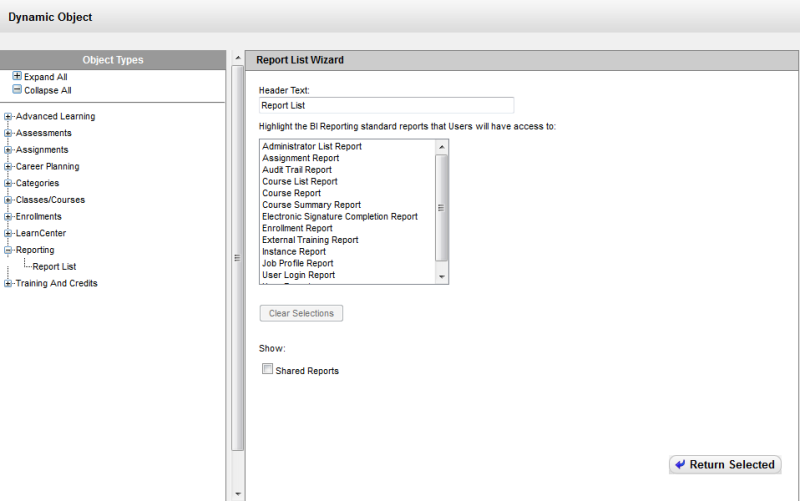
  4. Click next to Reporting in the Object Types panel.
  5. Click Report List The Report List Wizard opens.

  1. Highlight the reports you want to share with Users. You can hold down the control key on your keyboard and select more than one report.
  2. Select the Shared Reports check box if you plan to provide Users with access to shared reports. Shared Reports will be visible to Users in the My Reports folder.
  3. Click Return Selected to submit your selections and add the dynamic object to the LearnCenter page.
  4. On the WYSIWYG tool bar, click .
  5. Click to review how your selections will appear to Users.
What Users See

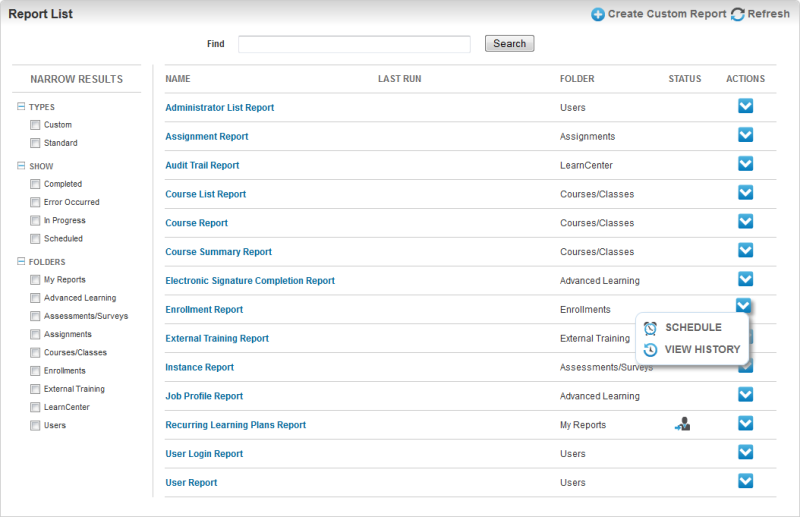
Users see functionality similar to what Admins and Supervisors see in the Control Panel and My Team.

Notice that any shared reports appear in the My Reports folder and have a special icon noting their shared status. Users can run, schedule, and view the history for their reports.

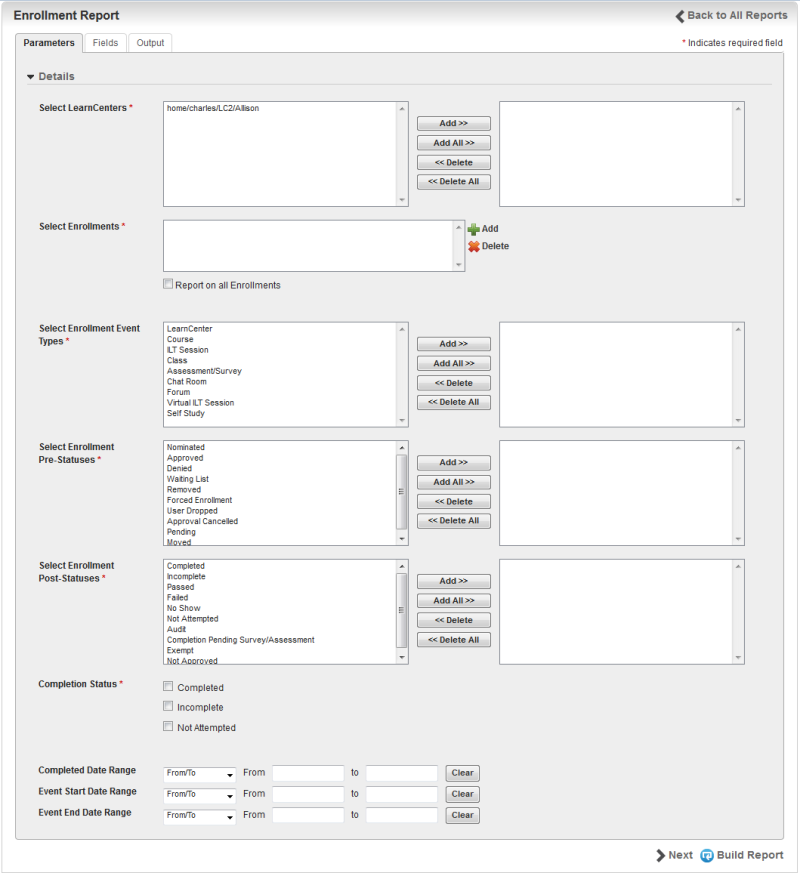
Notice that the User tab, normally present when you run this report in the ControlPanel or My Team, is not available to the end Users. They can only run reports on their own information.

Related Topics IconRelated Topics


Copyright © 2010-2015, Oracle and/or its affiliates. All rights reserved.