 on the Enrollments
menu to expand it.
on the Enrollments
menu to expand it. Search for the Enrollment you want.
Searching for Enrollments Using Filters
Click to expand the Filters section and search for Enrollments. You can search by one or a combination of any of the filters described below. You can narrow the list of all Enrollments to by using the filters at the top of the page. The fewer filters you use, the broader the search results. The more filters you use, the more narrow the search results. In the Filters section:
- (Optional) Type a portion of the event's name or description in the Name/Description Contains field.
- (Optional) Click Select Category and select a category from the Select Categories window.
- (Optional) Select one of the following from Event Type:
- All Event Types
- Assessment Instance
- Chat Room
- Class
- Forum
- Instructor Led Training Session (this option generates additional field)
- LearnCenter
- Online Course
- Online Synchronous Course
- Self Study
- Virtual Instructor Led Training
- Click Search.
The remaining filters available for use and described below depend on the Event Type you select. If you select All Event Types from the drop-down list, all filters are made available. They also depend on whether items are available to search by. For example, if you have not yet set up Physical Locations in your LearnCenter, a message instead of a field displays, indicating that there are no locations available for selection.
- (Optional) Select a Location from the drop-down list. This field only displays when you select Instructor Led Training Session as the Event Type. If no locations are defined for ILT, this field does not appear.
- (Optional) Select an Instructor's Name from the drop-down list. This field only displays when Instructor Led Training Session is the selected Event Type. If no instructors are defined in the ILT, this field does not appear. To filter by Show Instructors, select this check box to include the instructors' names in the returned results. This field only displays when Instructor Led Training Session is the selected Event Type.
- Click the Open Date check box to filter by an Open Date range. When you click this check box, the From and To fields display. Click these fields to display a pop-up calendar from which you can select a date.
- Click the Close Date check box to filter by a Close Date range. When you click this check box, the From and To fields display. Click these fields to display a pop-up calendar from which you can select a date.
- Click the Event Start Date check box to filter by an Event Start Date range. When you click this check box, the From and To fields display. Click these fields to display a pop-up calendar from which you can select a date.
The various date-related fields above can all be used in conjunction with one another - they do not overwrite or exclude each other. Each date range entered is applied to the current filter and displayed on the Filters section.
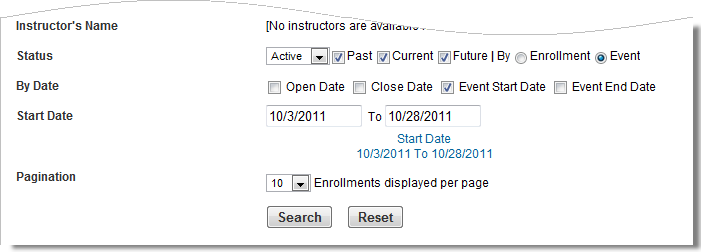
To remove a date range from the current filter, clear its check box.
- Click the Event End Date check box to filter by an Event End Date range. When you click this check box, the From and To fields display. Click these fields to display a pop-up calendar from which you can select a date.

|
|
- Select a number from the Display drop-down list to specify the number of records to display per page.
- Click Search to search Enrollments using the specified filters.
or
Click Reset to reset all filters to their default values. The search results display in the Enrollments section.
Sorting Enrollments
Once you have filtered the Enrollments, they display in the Enrollments section. The name of this section changes based on what kind of Enrollment you are looking for: past, current, future. You can further sort the items that display in this section to make the list easier to read or Enrollments easier to find.
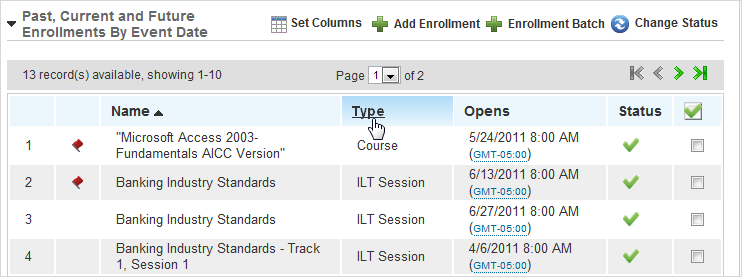
The column headings are clickable hyperlinks that enable you to sort the information on the page alphabetically by name or type, or by date open. Click the link once to sort in ascending order. Click the link again to sort in descending order. For example, click the Name link to sort the Enrollments alphabetically by name. Click the link again to reverse the order. An arrow next to the sorted column heading points up or down to indicate whether the column is sorted in ascending or descending order.
|
|
The Enrolled Users column cannot be used for sorting. |
You can also specify which columns display on the page.
- Click
 Set Columns to display a list of column headings.
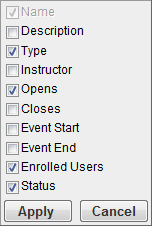
- Click the check boxes next to the column titles you want to display on the page.
or
Clear the check boxes next to the column titles you do not want to display on the page.
|
|
The Name column cannot be hidden. |
- Click Apply.
- Repeat these steps to add or remove other columns.
Changes you make to the column settings are visible the next time you log in to LearnCenter.
 next to the Enrollment.
  next to the message you want to send.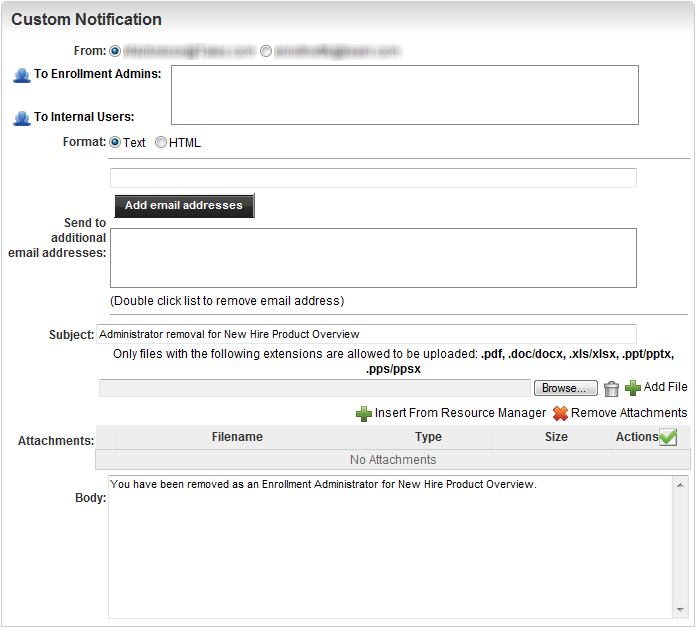

 Related Topics